VBA Express Forum  


Go Back   VBA Express Forum > VBA Code & Other Help > PowerPoint Help
     Feedback     
Register FAQ Members Arcade Knowledge Base Training Articles Consulting

Reply
 
Thread Tools Display Modes
Old 03-10-2012, 02:05 PM   #1
zxmon21

 
Joined: Feb 2012
Posts: 7
Kb Entries: 0
Articles: 0
Unhappy "Smart" bullet point behavior

Sorry about the poor title, but I don't know the proper term to describe it. Let me explain what I mean.

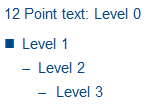
In our PowerPoint template, we have a bullet scheme defined in (I think) customlayouts. The scheme looks like this:

1st list level (no indent) = no bullet
2nd list level = square bullet
3rd and 4th list level = line bullet


In the template, there are text boxes (shape.type = 17) with a behavior that I would like to reproduce. Let me describe.
When user uses the "increase list level" or "decrease list level" buttons, the bullets change accordingly. The tab-key has the same effect, if used in the right way.

Now, the big question: How can I get this behavior for any text box? When I manually (or by macro) set
textrange.Paragraphs(i).ParagraphFormat.Bullet.Character, this destroys the behavior, even in previously "automatic" text boxes. Very annoying.

Do you have any idea how I can set achieve this list level behavior for text boxes of my choice?

It might already help if you can point to what this behavior is called, or how the list level bullet pattern is determined in the first place.

All help is welcome!

So far this is my workaround, but it breaks the automatic behavior.

VBA:
With MyTextRange For i = 1 To .Paragraphs.Count .Paragraphs(i).ParagraphFormat.Bullet.RelativeSize = 1 Select Case .Paragraphs(i).IndentLevel Case 1 .Paragraphs(i).ParagraphFormat.Bullet.Character = 110 .Paragraphs(i).ParagraphFormat.Bullet.Type = ppBulletNone 'nothing Case 2 .Paragraphs(i).ParagraphFormat.Bullet.Type = 1 .Paragraphs(i).ParagraphFormat.Bullet.Type = ppBulletUnnumbered .Paragraphs(i).ParagraphFormat.Bullet.Character = 110 .Paragraphs(i).ParagraphFormat.Bullet.Font.Name = "Wingdings" 'square Case Else 'dash .Paragraphs(i).ParagraphFormat.Bullet.Type = 1 .Paragraphs(i).ParagraphFormat.Bullet.Type = ppBulletUnnumbered .Paragraphs(i).ParagraphFormat.Bullet.Character = 8211 .Paragraphs(i).ParagraphFormat.Bullet.Font.Name = "Arial" End Select Debug.Print .Paragraphs(i).ParagraphFormat.Bullet.Character Debug.Print .Paragraphs(i).ParagraphFormat.Bullet.Font.Name Next End With
VBA tags courtesy of www.thecodenet.com

Last edited by zxmon21 : 03-10-2012 at 02:18 PM.

Local Time: 12:52 PM
Local Date: 05-23-2013
Location:

 
Reply With Quote Top
Old 03-11-2012, 04:45 AM   #2
John Wilson

 
Joined: Feb 2007
Posts: 839
Kb Entries: 1
Articles: 0
If you have a template that does that AS DEFAULT I would love to see it.

I would have said it was impossible but I'd like to be proved wrong!

john ATSIGN pptalchemy.co.uk


John Wilson
Microsoft PowerPoint MVP
Amazing Free PowerPoint Tutorials
http://www.pptalchemy.co.uk/powerpoint_hints_and_tips_tutorials.html

Local Time: 11:52 AM
Local Date: 05-23-2013
Location:

 
Reply With Quote Top
Old 03-11-2012, 05:21 AM   #3
zxmon21

 
Joined: Feb 2012
Posts: 7
Kb Entries: 0
Articles: 0
Hi John,
I emailed you a sample slide with one "automatic bulleting" and one "broken" text box. Let me know if you can tell what causes the different behavior, I'm definitely in way beyond my VBA-skills here

Have a nice Sunday afternoon,

Local Time: 12:52 PM
Local Date: 05-23-2013
Location:

 
Reply With Quote Top
Old 03-11-2012, 06:12 AM   #4
John Wilson

 
Joined: Feb 2007
Posts: 839
Kb Entries: 1
Articles: 0
Thanks. I can't instantly see how that was done (I thought you meant the default text box had those properties)

I can have a better look next week. In the meantime I would suggest you play with using TextFrame2 if you are not already doing that.


John Wilson
Microsoft PowerPoint MVP
Amazing Free PowerPoint Tutorials
http://www.pptalchemy.co.uk/powerpoint_hints_and_tips_tutorials.html

Local Time: 11:52 AM
Local Date: 05-23-2013
Location:

 
Reply With Quote Top
Old 03-16-2012, 12:39 AM   #5
zxmon21

 
Joined: Feb 2012
Posts: 7
Kb Entries: 0
Articles: 0
Hi John,
I did some further investigation, and here's what I found.

I took a text box with "automatic" behavior and compared the XML with a textbox with broken behavior. It turns out that there's only a tiny difference in the XML. Who knows, maybe this will help someone point me to the right VBA to set the broken textbox back to automatic behavior. Here's the diff

In the automatic text box
VBA:
<a:p> <a:pPr lvl="1"/> <a:r> <a:rPr lang="en-US" dirty="0" smtClean="0"/> <a:t>Level 1</a:t> </a:r> </a:p>
VBA tags courtesy of www.thecodenet.com

In the broken text box
VBA:
<a:p> <a:pPr lvl="1"> <a:buSzPct val="100000"/> <a:buFont typeface="Wingdings"/> <a:buChar char="n"/> </a:pPr> <a:r> <a:rPr lang="en-US" dirty="0" smtClean="0"/> <a:t>Level 1</a:t> </a:r> </a:p>
VBA tags courtesy of www.thecodenet.com

Now the question is: how do I get VBA to bring me back to the "auto" behavior?

Local Time: 12:52 PM
Local Date: 05-23-2013
Location:

 
Reply With Quote Top
Reply


Posting Rules
You may not post new threads
You may not post replies
You may not post attachments
You may not edit your posts

vB code is On
Smilies are On
[IMG] code is On
HTML code is Off
Forum Jump


All times are GMT -7. The time now is 03:52 AM.


Powered by vBulletin Version 3.5.4
Copyright ©2000 - 2013, Jelsoft Enterprises Ltd.
Copyright © 2004 - 2012 VBA Express